Do you need to load a binary (.hex) to your Arduino? If yes, please read on. There are lot of times you may find yourself in need to load a sketch to Arduino but using Arduino IDE is either too slow or not practical, say you don’t have the libraries for the sketch properly installed. The average compile time I experienced with long project is in the order of a minute. If all you need is to load a program to Arduino, with no need to change the program, you can load a compiled binary and use xloader to Arduino. The upload speed is much faster since there is no compiling anymore. As a designer, you can also distribute firmware of your hardware to a client, all without giving away your source code. Even if you wish to give away your source code, you probably need several custom libraries and the clients may not be able to quickly install and configure the libraries to compile your code in the first place. Anyway, if you are in need to load compiled binary, you should consider xloader. Personally, I load my phi-panel firmware with this program. It’s a time saver.
It is a very neat tool to load compiled binary. The interface is simple:
For those of you that received a binary file and want to know how to load it, skip the how to create a binary file section.
How to create a binary (.hex) file
To create a binary file, first start Arduino and compile the sketch.
Then go into your windows temp file folder, such as: C:\Users\Liu\AppData\Local\Temp
Inside this folder, you should find a build folder such as: build6341600473098683432.tmp
Inside this folder, look for your main sketch file name with a .hex extension. Say your main sketch is project1.ino, then look for project1.hex. If you noticed your project’s compiled size, this .hex file is twice as large.
Copy the project1.hex file and save it elsewhere, since all build folder content is deleted if you close Arduino.
How to load a binary(.hex) file
First, choose the hex file in the first line, then choose your arduino, the baud rate changes automatically with your device selection. Then choose com port, using the same technique, i.e. select the last port (windows machine). Then press upload and wait for the message on the bottom of the screen to say XXXX KB uploaded.
It may be just me but I am interested in reading code written by others. It’s like literature. Everyone has a different style and you can always pick up something useful if you read. But some beginners read code written by others simply because they wanted to use that code on their own projects. If you have already done that as a beginner, you may have seen what I am about to introduce: the #define.
These “#define” appear in the beginning of some project code and you may wonder what they do and why they are there. Here is some light reading about the “#define”:
First of all, the #define is not declaring or defining a variable. It is simply a substitution rule.
Example:
#define foo bar
If you have the above at the beginning of your code, then every time foo shows up in subsequent code, it gets replaced by bar. Normally only complete match is replaced so foobar won’t be replaced by barbar. Also foo inside a text string is not replaced either.
This “#define” command is called a preprocessor directive. The substitution occurs before the code is compiled, thus the name.
There are a lot of good use for this directive. If you want to blink an LED, you can do:
But that would suck if you want to blink a different pin. You have to change pin number in multiple lines and pray not to make a mistake. But this will work much better.
#define LED 13
digitalWrite(LED,HIGH);
delay(1000);
digitalWrite(LED,LOW);
delay(1000);
This way if you move the LED to pin 10, all you have to do is to modify the “#define LED 13” into “#define LED 10”. Obviously in this example the first way only requires two changes to blink LED on pin 10. On the other hand, if you have programmed the game Angry Bird with earth gravity g=9.81m/s/s and suddenly want to expand your game to moon, where gravity g=1.62m/s/s, good luck to you if you typed in 9.81. There would be thousands of places where 9.81 was typed in and need to be changed. And from reading the program, you will have no idea what gravity value was used (just seeing a 9.81 in a calculation doesn’t count as knowing gravity is 9.81). Now if you did “#define g 9.81” in the beginning of your code, remaking your Angry Bird on the moon will only take two seconds on your coding and it will also be obvious to the reader of your code, which is probably 90% chance yourself at a later time. You will be surprised how forgetful you are.
There are a lot of advanced uses of “#define” to control how your code gets compiled, which in my opinion is not useful for beginners. I will cover that in a separate post. Just as a teaser, let’s think about this question: you have two prototypes, prototype1 with a 16X2 LCD and 4X4 matrix keypad, prototype2 with a 20X4 LCD and rotary encoder. Your project code works on both hardware but the initialization part is dependent on which prototype you are using. You will be able to use something like “#define prototype1” to make the compiler only compile initialization code for prototype1. Just exactly how, I will cover it in a separate post.
This is a basic skill for anyone trying to tinker with electronics yet everyone starting off can use some general guidance on how to use a breadboard.
A breadboard, or a solderless breadboard, is a platform where you lay out your circuit, similar to a piece of paper where you can draw the circuit. You will be able to put components down on the breadboard and interconnect them to form your circuit. It’s important to first draw up a connection diagram on a piece of paper so you can use it as guide to connect up components on your breadboard, especially for complex circuits, or you are just starting with electronics.
How does a breadboard work?
So how does a breadboard work? Simple. If you draw up a circuit, you notice these junctions that connect up several wire ends, right? If you build this circuit, you will use something to hold these wire ends, possibly with a metal paper clip so you get good contact and they don’t fall apart, right? That’s exactly how a breadboard works. There are tiny metal clips that can hold on to your wires so you can make these junctions. Each clip has 5 holes above it so you can connect up to 5 wire ends by inserting them into these 5 holes. Take a look at the following pictures:
On the first picture you will see a miniature breadboard. It has a groove in the middle, separating its two halves. You will notice each half has 5 columns of holes. Take at a look the back side of the breadboard on the next image in the gallery. I removed the protective backing and walla! You can see these metal clips behind the holes. Each clip is behind a row of 5 holes. See the third picture. So now you know that each row of holes should represent a junction that can connect up to 5 wire ends, using the metal clip below these holes. In the fourth picture I was holding one clip in my hand. You can see the clip is cut into 5 sets of separate prongs. This allows the clip to grab on to 5 wire ends of different diameters and have good grip on them all instead of only holding the thickest wire and letting loose the rest.
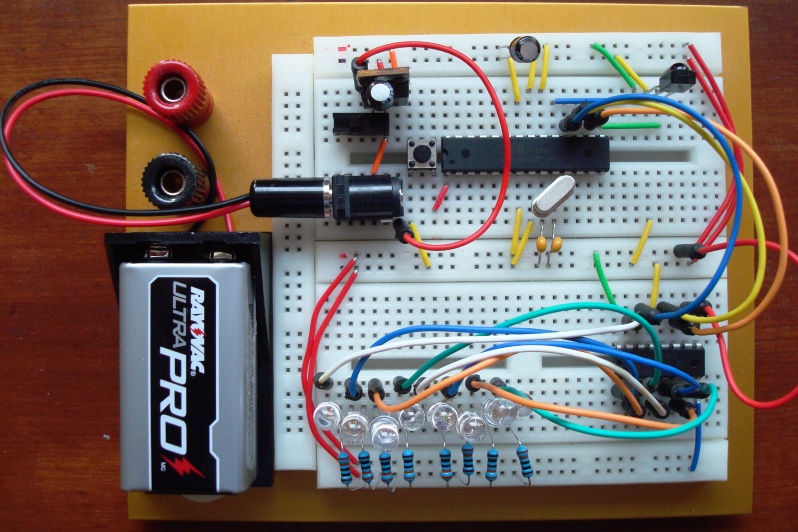
Now that you know how a breadboard works, it’s time to learn how to use a breadboard. Before moving on, take a look at the last image. It’s a project I built on a breadboard. There are 8 individual LEDs that will light up and flash different patterns and programmable all via a remote control. Pretty fancy?
Enjoy a video before moving on so you know if you can use a breadboard, you can do something just as fancy:
How to use a breadboard?
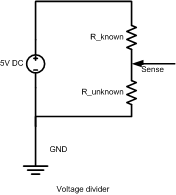
To use a breadboard, you first need a circuit to build on it. Let’s build something useful. In this previous post, I described how to use a thermistor to measure temperature:
This is a voltage divider. You have a known resistor (10Kohm), and an unknown resistor (the thermistor, which changes resistance with temperature). You also have 5V and ground, besides an analog sensing pin from Arduino.
To build this circuit on a breadboard, we realize that there are 3 junctions:
The junction above R_known, with 5V and R_known coming together
The junction between R_known and R_unknown, with both resistors and arduino pin coming together
The junction between R_unknown and GND, with R_unknown and GND coming together
To build the circuit, we need to use three rows of holes to do these three junctions. Here is the finished circuit:
Well, you noticed the image of the finished circuit is not an actual breadboard. To be honest, I don’t have a breadboard at my desk and photographing real breadboards often gives you the wrong perception of which wire goes to which header due to the different depth between the jumper wire end and the header. I have helped enough people with their circuit by viewing their breadboard photos. This common problem is seen on nearly every overhead photo. Another nice thing about this photo generated in Fritzing is that the rows of 5 holes are highlighted with green so you know these 5 holes are interconnected. They even do the resistor color coding right.
If you have a regular power supply, such as a student +-25V power supply, you should wire the power from the power supply to the banana sockets on a full-size breadboard and wire the power from there to the power buses, which are the columns on the outside with red and blue lines. All the holes along the same red line are connected. Different red columns are not connected. Once you have these convenient buses, you can just derive power from the buses instead of wiring multiple wires from the power supply. Take a look at the following images for a more complete understanding of what are connected together and how the power buses are used in an actual circuit:
Now you probably noticed that there is an integrated circuit (IC) in that last picture. Take another look at it just to remember how it is put onto the breadboard. Aha! That’s why there are these grooves! With an IC, you put it on the breadboard so that it sits right above the groove. This way you will have access to all its pins instead of shorting their pins if you push it onto the rows of 5 connected pins.
For more complicated circuits, you will need to plan ahead on how to lay it on the breadboard, try to spread out instead of squeezing at a corner.
Now take a look at this picture again just to have a better understanding on how the breadboard is used and you’re ready for the road!
A little while ago the store owner of dipmicro.com approached me regarding their kits sales. He has decided to discontinue selling any or all kits, including the phi-2 shields they have been carrying for the past few years. At the moment all kits that were sold there are gone. Only those designed by dipmicro are still selling. Instead of selling kits, he thought it would be better for him to sell assembled products. It is unfortunate that I lost a vendor but I still keep them on my list of parts suppliers. Maybe in the future when I will be selling fully assembled arduino gadgets I will ask them to carry again.
I got a request from Kenny G. that he wants to run OLED displays on phi-panels and got interested in modifying the software and hardware to work. Thanks to Kenny, who loaned me an OLED display from adafruit (wintech 1602AB), I was able to tinker with it last night and today. I eventually made it to work:
Here is some photos:
One of the photos is a diagram on how to modify the backpack PCB. Please check out the google code page regarding the firmware.
Pretty bad, basically clear() blink() cursor() display() and their counterparts are not working. I confirmed most of these with the simplest setup. On the other hand, home() works so I can limp on with home() and writing a lot of blanks to clear but can’t show cursor or blink anymore.
So I commented out these functions and modified clear() to write 80 spaces and do a home(). It works as it should. With other software this would have flicker on the screen but with phi-panel’s display buffer, it does not flicker.
In the future, if there is enough interest, I will make some special backpack PCBs that don’t need modification to work with OLEDs.
Meanwhile Kenny is testing other OLEDs he has regarding adafruit library usability. I felt that adafruit didn’t go all the way to provide a reliable library for us this time but without spec sheet, what more than this can they do? Maybe being a bit more upfront with their limitations?!
Happy New Year everyone! Thank you for the over 100,000 visits and countless comments. I am hoping with the new year, I can make more basic tutorials so this site will be helpful for both newbies and those that are interested in the family of phi hardware and software.
This is a short tutorial on how to order your PCB from seeedstudio.com
I am not associated with seeedstudio but just a regular customer. They have competitive price and decent quality. They also recently automated design file submission process, although there is still some kinks.
Once you finish designing your PCB with EAGAL CAD, you should use seeedstudio’s CAM file to export the design into several files. The CAM exports many files but only the following are useful and should be zipped in a .zip file, per their sales page:
Top Layer: pcbname.GTL
Bottom Layer: pcbname.GBL
Solder Mask Top: pcbname.GTS
Solder Mask Bottom: pcbname.GBS
Silk Top: pcbname.GTO
Silk Bottom: pcbname.GBO
Drill Drawing: pcbname.TXT
Once you have a .zip file, direct your web browser to seeedstudio.com and you will see their store front:
Once you are on their web store, look for “Services” on the navigation bar on the left and click it. It will bring up their services page, with three types of service.
The second one “Fusion PCB Service” will take you to their online PCB ordering page. Click “Fusion PCB Service” and you will see the following page:
There are a lot of options on this page. I will list what they are below:
File: Pick the .zip file that contains your design. I have two zip files, Shield_V1.0.5.zip, and Power_supply_V1.0.2.zip. I will select Power_supply_V1.0.2.zip
Qty: Seeedstudio doesn’t make 1 PCB, the least amount is 10 PCBs. Go ahead and pick 10, unless you want 50 or 100.
Layer: You will pick 2 layers. This means you will have circuits both on top and bottom of your circuit boards. I don’t see many single layer PCB any more but they were popular decades ago.
PCB Thickness: Go ahead and pick 1.6mm. Most popular thickness is 1.6mm. If you want some added mechanical strength on your larger boards, you can go with 2.0mm.
PCB Dimension: This is the maximal size of your PCB. Typical sizes they provide are 5cm*5cm (about 2″*2″) for $10 (10 boards), and 10cm*10cm (about 4″*4″) for $25 (10 boards).
PCB Color: You can leave this as Green since other colors cost extra $10-$20. It’s just the look. Your PCB will be painted with color paint.
Surface Finish: Pick HASL (Hot Air Surface Leveling). It’s a technique that plates holes with hot molten solder and the excess is removed by hot air. You can also pick leadless HASL if you want to go green. You may upgrade to ENIG, which is Electroless Nickel Immersion Gold. Holes will be covered by a thin layer of gold to prevent oxidation.
E-Test: For somewhat sophisticated designs, E-testing is recommended. For something simple such as the power supply board, it’s not very necessary.
Say I have two designs, Shield_V1.0.5.zip, and Power_supply_V1.0.2.zip. I will first select Shield_V1.0.5.zip in the file selector, select everything according to the list explained previously (Qty=10, Layer=2, Thickness=1.6mm, Dimension=10cm*10cmColor=Green, Finish=Hasl, E-test=100%), then push “Add to Cart”.
Then I will push “continue to shop” and be brought back to the PCB ordering page. I will pick Power_supply_V1.0.2.zip and select 5cm*5cm. Similar settings to the other design (Qty=10, Layer=2, Thickness=1.6mm, Dimension=5cm*5cmColor=Green, Finish=Hasl, E-test=50%) and add to cart. I’m not testing these boards 100% since they are simple.
After everything is added to cart, I would proceed to check out. You need to set up an account with seeedstudio and have a paypal account. Shipping is less than $10 but slow. I average about 3 weeks between design submission and delivery (to Mid-west, USA). You can also pay DHL and save maybe a week or more, although I never used it. I guess that’s it. Well, one bug on their site though: if you select a design zip file and push add to cart, but later remove the item from the cart, you can’t upload the same file anymore. I guess they buffer your file but don’t remove them when you remove your item from cart. You will have to change the name of the zip file if you do encounter this problem. I’m sure they’ll fix it soon.
Oh by the way, since you’ve read this far, I’ll tell you a secret or two:
If you order $50+ at their store, they ship for free.
If you order 10, you will likely receive 11 or even 12 boards. If you order 50, you probably get 51. Sometimes it’s cheaper to order 10 PCS the same design from time to time than ordering 50 pcs, since you get 10%-20% more boards and only like 2%-4% more boards with 50 PCS 😉
This is a directional keypad I developed for phi-panel, together with the rotary encoder keypad.
There are two sizes, 20X4 and 16X2.
Features:
Laser-cut 3mm-thick glossy/matte black acrylic face plate with window to mount a 20X4 or 16X2 character LCD and a 8 push buttons. You choose which side to use, glassy or matte. Brown/white color is removable protective layer on both sides.
4 push buttons are arranged in up/down/left/right
2 buttons above the directional buttons and 2 above.
8 short standoffs for LCD and keypad circuit board, 4 long standoffs for the face plate, 12 screws and 12 nuts, all M3 in size
6 button covers in case you want to cover up the button holes you don’t use
PCB for the keypad and 8 buttons
Currently the 20X4 version is out of stock. I only made 2 in a batch of 4 new keypad face plates. If you want the 20X4 kit please respond with a comment.
Initial tests are all positive with phi-panel functions with new firmware. The directional keypad is very nice if you don’t need the 0-9 numbers provided by the matrix keypad. There is no more setup menu you can call up with the escape key.
It took me forever to make those white connectors. The female crimp end was so hard to make that if you add just a bit too much solder the spring is soldered on and can’t accept pins. These are not the best ways to connect the keypad to phi-panels. I did it only because I want to switch between keypads between photos and videos so I don’t have to tie up two assembled panels with keypads.
In the kit, I included regular male headers. You can simply solder wires to the pins or use male headers and wire wrap to the pins for connection, much easier than the white wafer connectors.
I am writing documents for these keypads but you can already purchase these kits and tinker with them. It’s pretty easy to hook them up to phi-panels or your arduino in case you don’t want a phi-panel.
There are several popular character OLED (organic light-emitting diode) displays among Arduino fans. These displays have a lot better contrast than LCDs, needs no contrast adjustment, and are brighter, but more expensive. The wiring of these character OLED displays seems to be compatible with HD44780 LCDs but there might be some timing issues with the ones Adafruit sells:
They need modified LCD library supplied by Adafruit and also need the R/W line to be controlled by Arduino instead of simply grounded. A phi-panel backpack user has recently purchased their displays and other ones from Newhaven. There might be a need for the backpack to support these displays, with a modification of the existing PCB and or firmware, or even a new PCB design. I am wondering if there is enough demand for this modification. Just write me a comment if you are interested in the phi-panel backpacks supporting these display. I will also update this post when I receive word from that phi-panel backpack user regarding their test with these OLEDs.